

Set up Caliph on iPhone
Open Caliph and sign in. In App pauses, tap Set up an app or Setup guide, then Open Shortcuts.
Airbnb is the example. Choose the app you want to pause. Screens may vary by iOS version.
Download Caliph from the App Store to get started.
Start in Shortcuts
Open Shortcuts. Tap Automation, then +. First time? Tap New Automation.
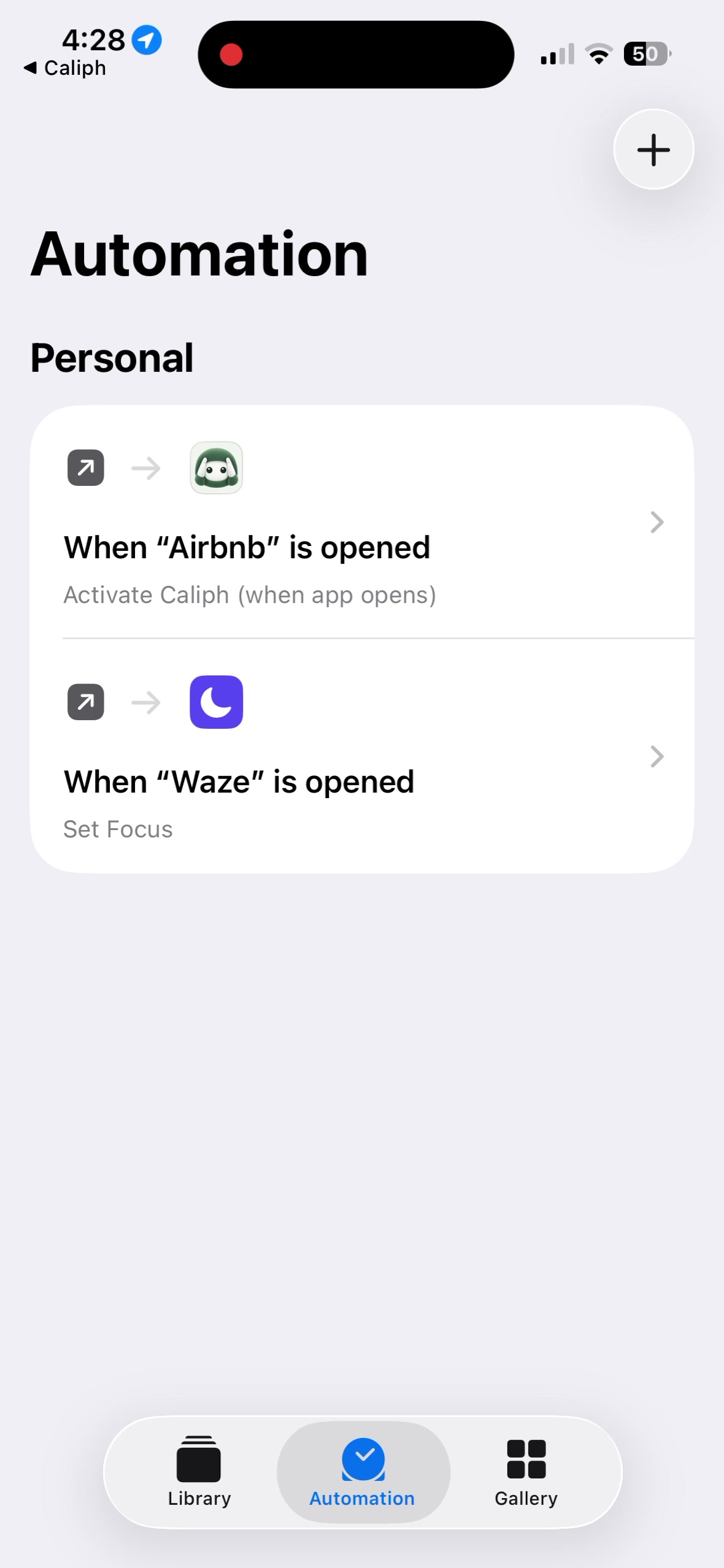
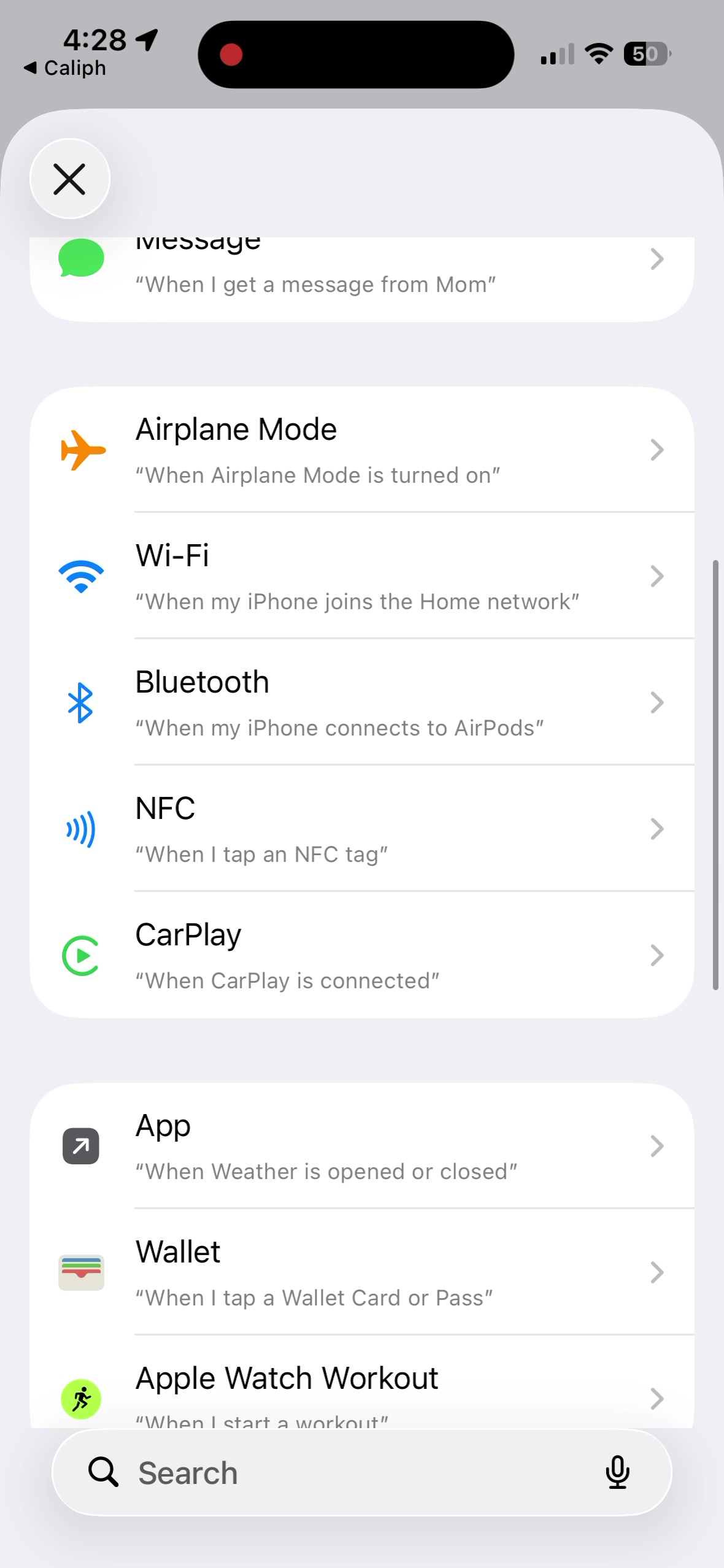
Tap App
Scroll down the trigger list and tap App.
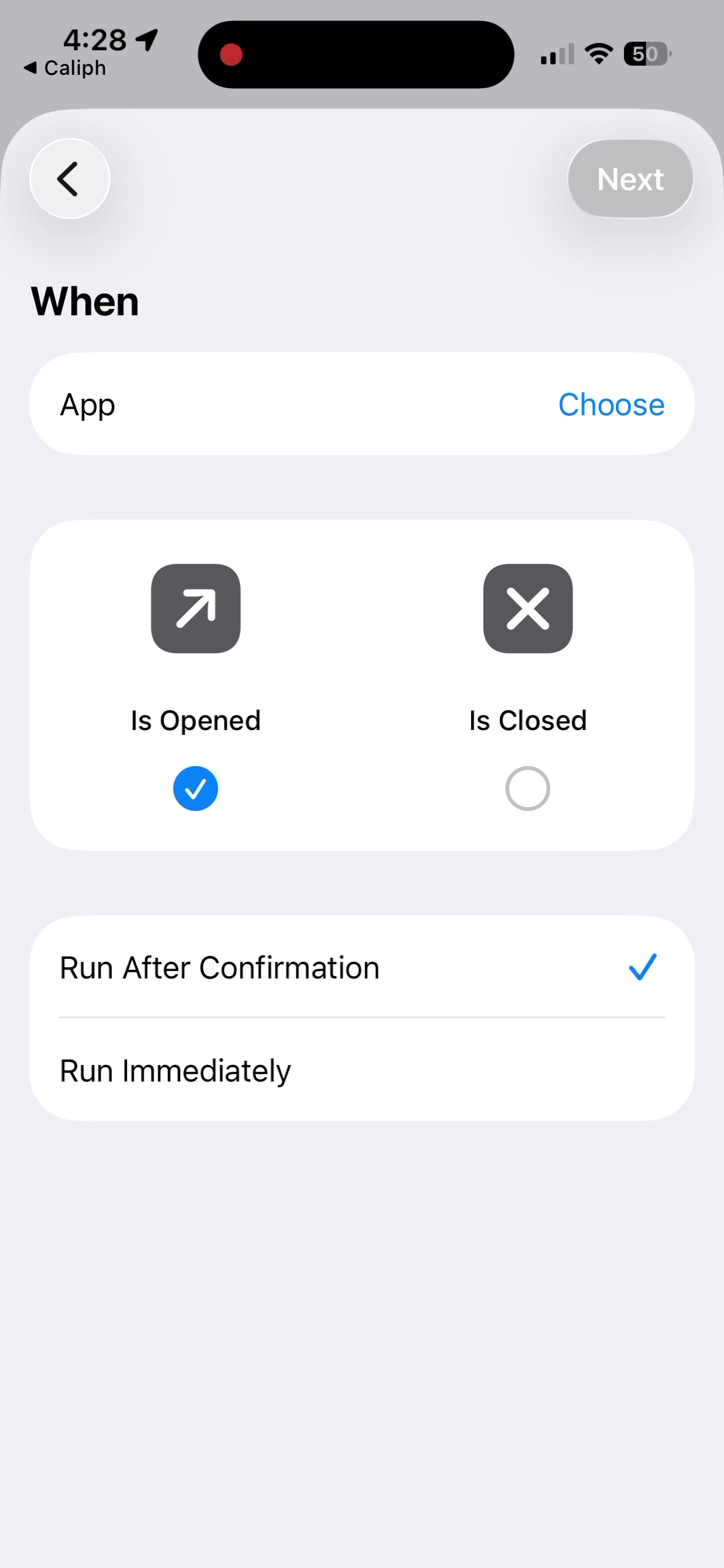
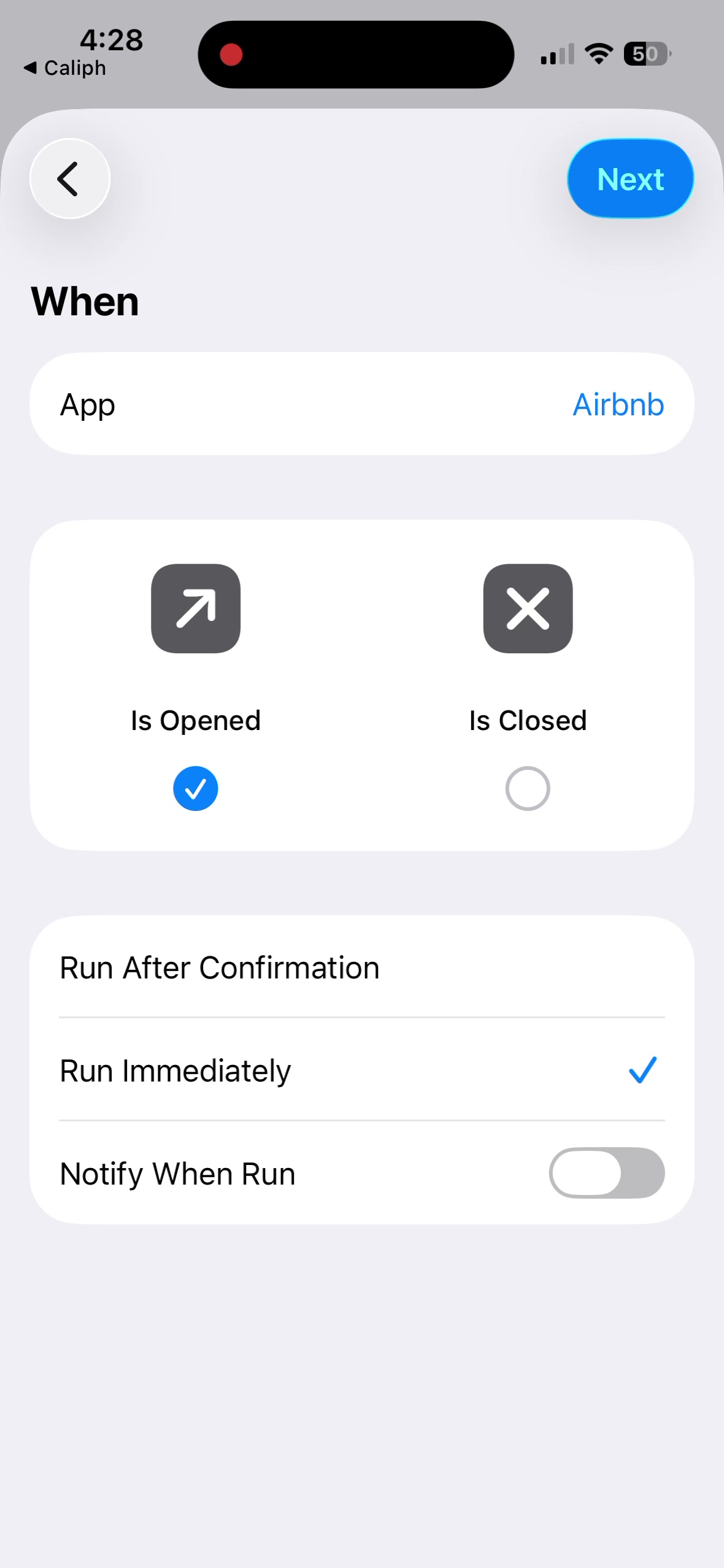
Choose one app
Tap Choose and select one app. Keep Is Opened on and Is Closed off. Select Run Immediately, then Next.
Create the shortcut
Tap Create New Shortcut. It may be called New Blank Automation on your iPhone.
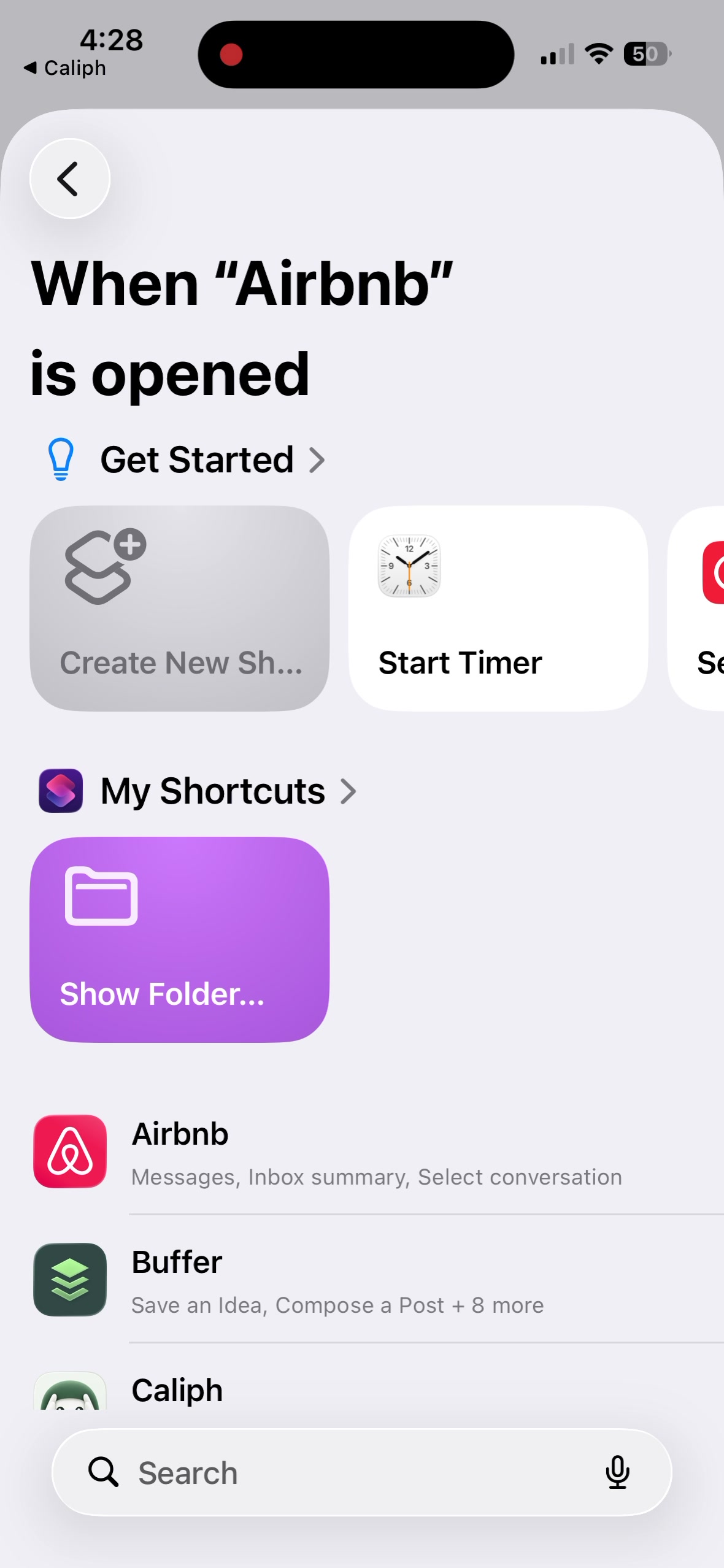
Add Caliph
In Search Actions, type Caliph. Tap Activate Caliph (when app opens).
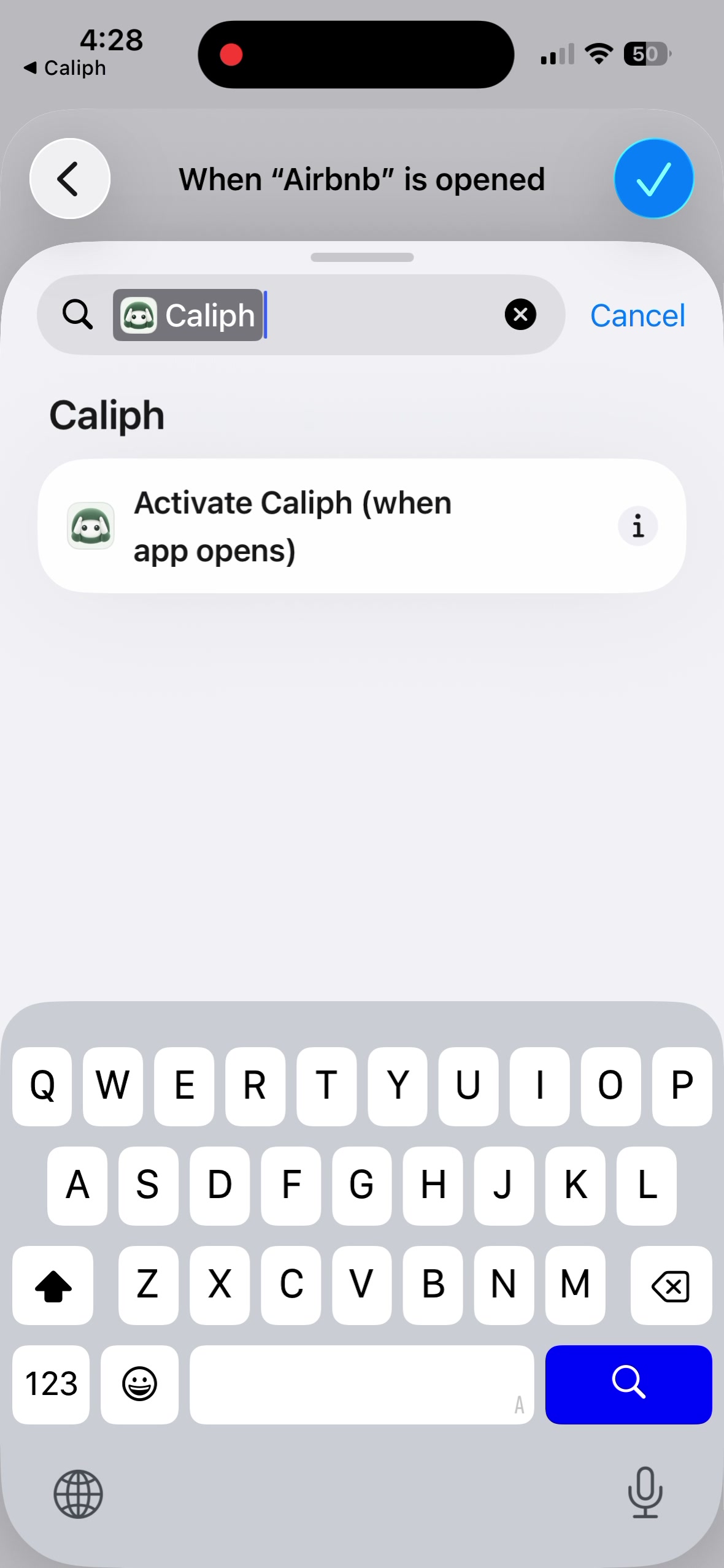
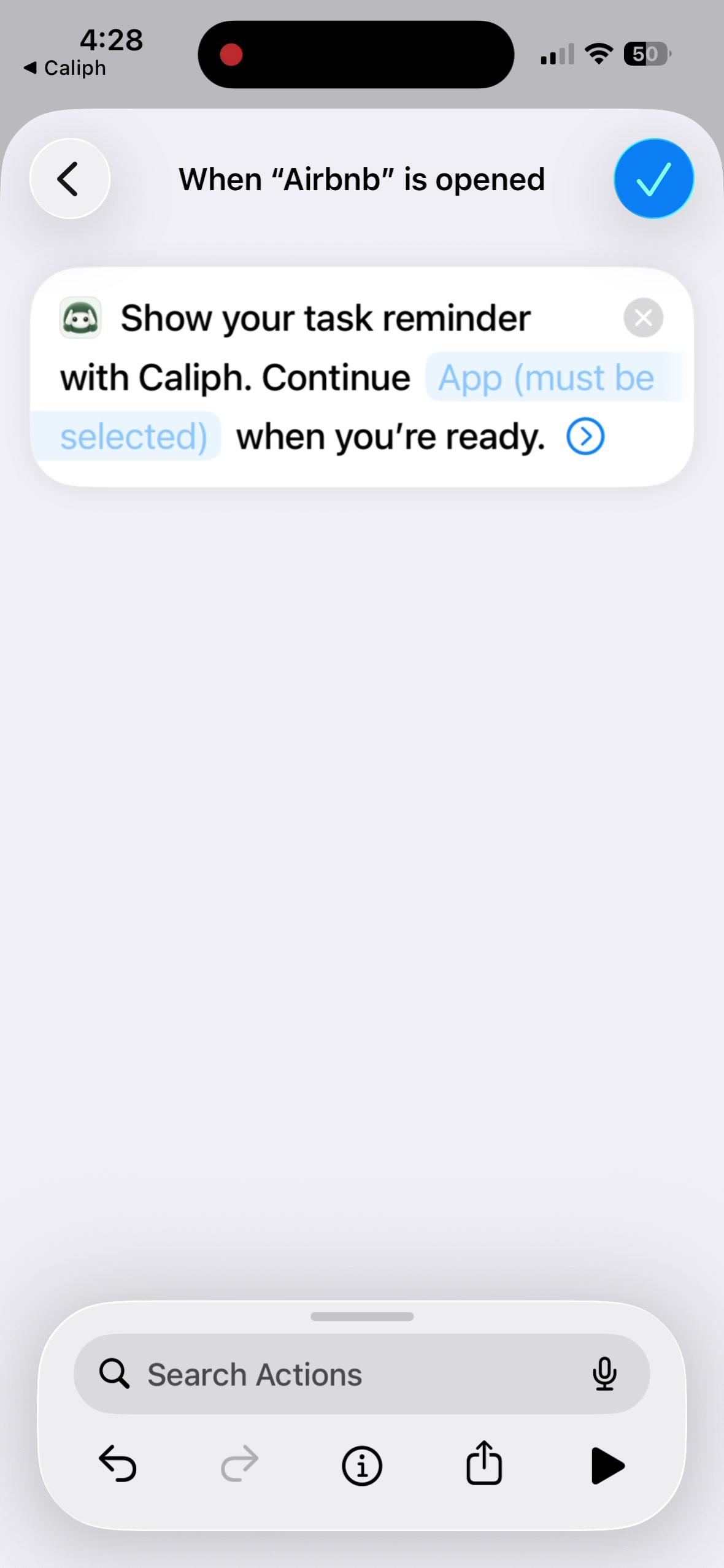
Choose the same app again
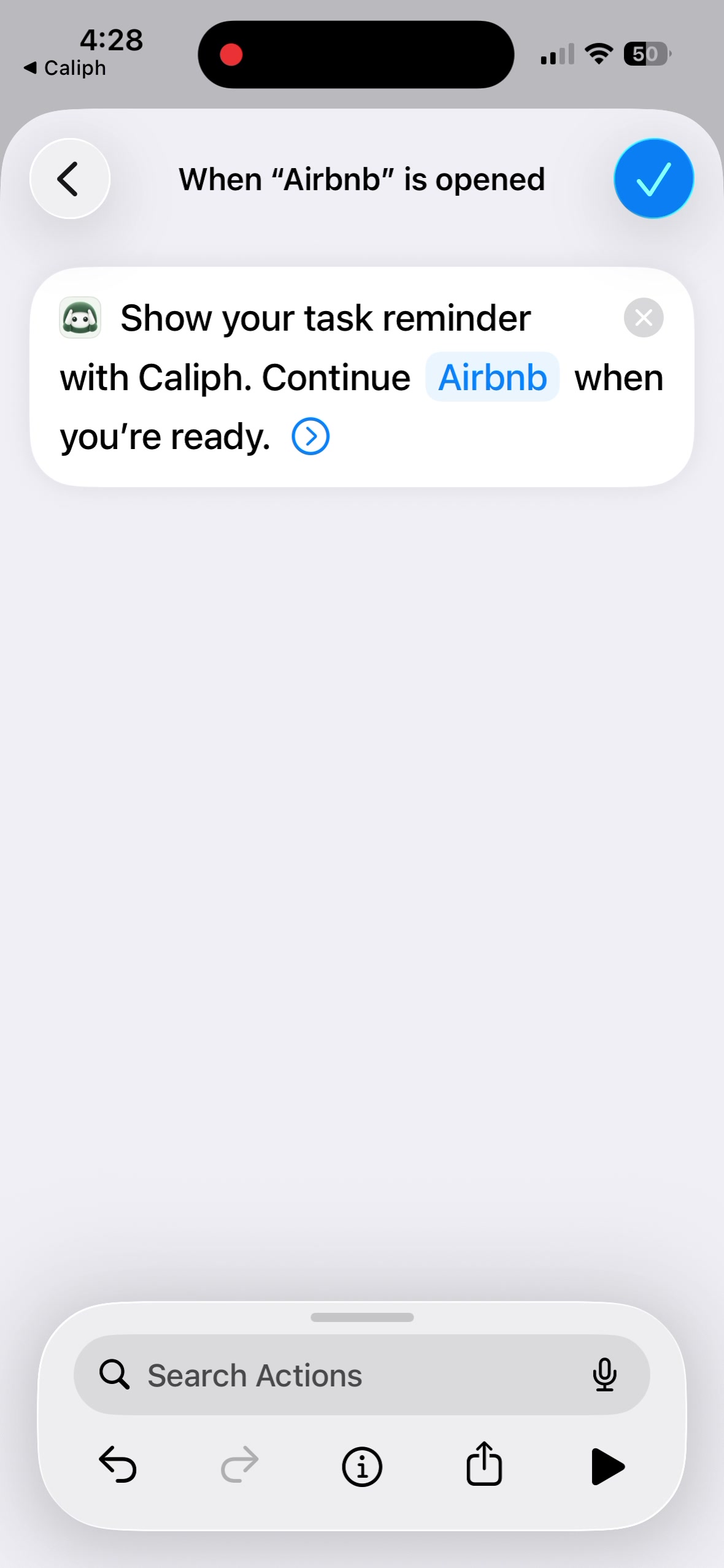
Tap the blue App field and choose the same app. Check its name appears, then tap the checkmark to save.
Don’t leave it as App or Ask Each Time.
Try it
Open your app from its normal icon. Caliph should show your tasks. Choose Open app to return, or Stay in Caliph.
Repeat these steps for each app you want to pause.
Stuck?
Caliph isn’t in Search Actions
Open Caliph and sign in, then search again in Shortcuts. You can also look under Apps → Caliph.
My app isn’t in Caliph’s action
On your iPhone, tap App missing from the action? in Caliph’s guide and add your app. Return to Shortcuts and select it in the action.
Nothing happens when I open my app
In Caliph, turn App pauses on. In Shortcuts, check Is Opened and Run Immediately. Both app selections must match.
Shortcuts asks me to pick an app every time
Edit the automation. Tap the blue App field in Caliph’s action and select your app’s name, then save.
Free includes 3 paused apps. See plans.
Still need help? Email us.